# Group settings
With the help of group settings, it is possible to tune the settings of the attendance rules for different groups of employees down to the level of one employee.
# Groups of settings
# Work mode - settings
# Basic

They define the shortname and name of the work mode.
# Regional

They define according to which state the holidays are to be counted in the working regime.
# Work intervals
The work mode consists of work intervals and determines the balance of working time for the whole month.
Use the New group button to define the working mode (working time):

Enter the shortname and name of the work mode.
Save  .
.
Note
R- value is required
After defining the work mode shortname and name, it appears in the work mode table:
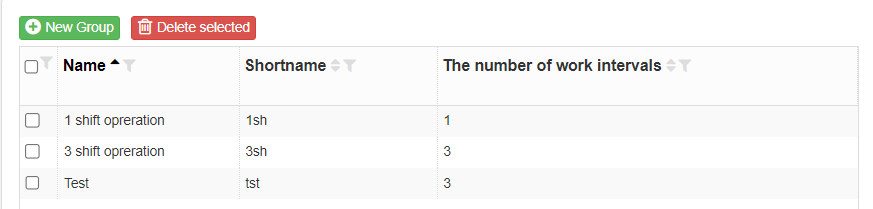
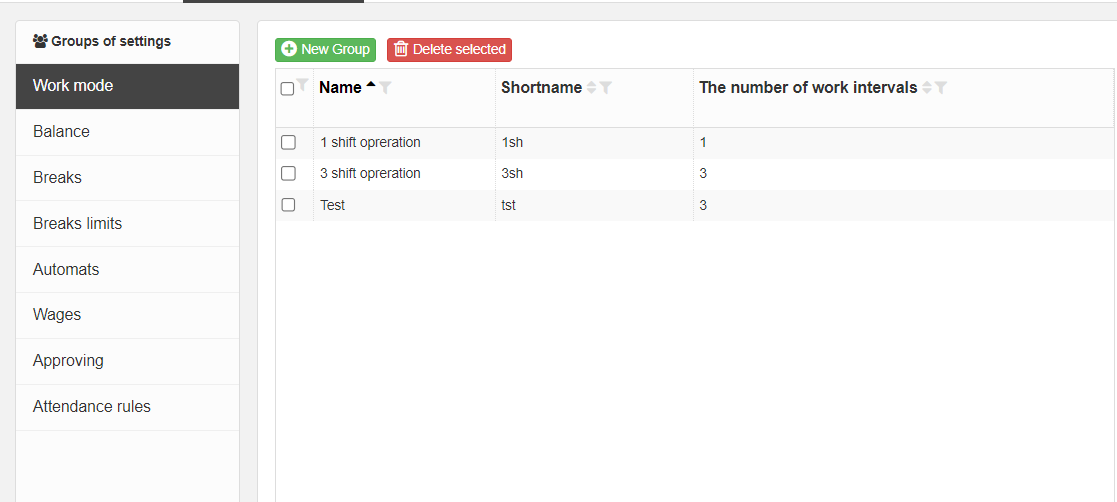
By clicking on the mode, assign the work intervals that make up the work mode and define other parameters:
Use the Add existing intervals button to add existing work intervals that create a work mode:
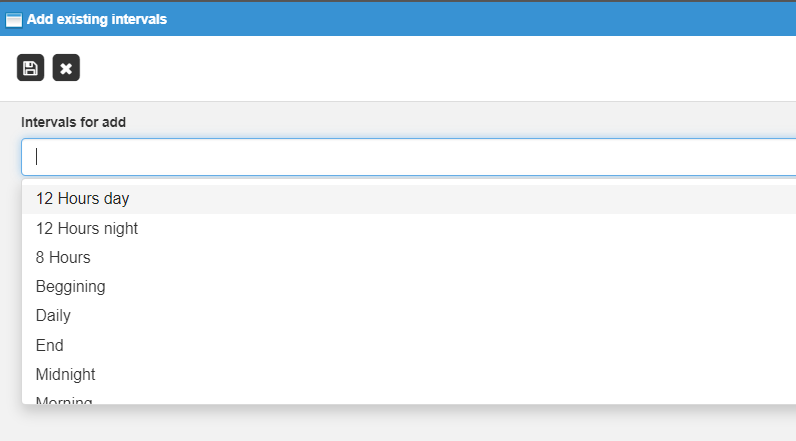
Save .
If you need to enter a completely new work interval in the work mode, use the New interval button to create a new one according to the instructions, see Work intervals.
With the Remove selected intervals button, you will remove work intervals that do not belong to the work mode. Intervals must first be marked by clicking:

The 0H Settings button is a preset zero work interval, automatically assigned to days on which the employee does not perform work.
# Rules
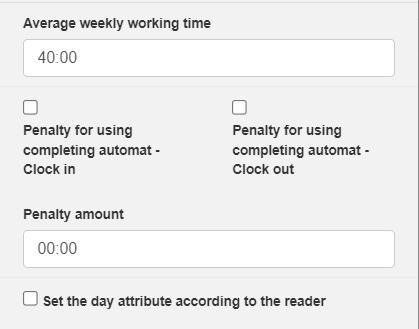
Average weekly working time - we define the average weekly working fund. This option is necessary for working modes where e.g. short and long day (city office). The value is used to calculate the average value of a day's break (eg vacation). Even on a short and a long day, the break has an average value (e.g. 8 hours).
Penalty for using completing automat - Clock in - a parameter that determines the penalty if the original time of Arrival to work is not presented on the reader, only the system will fill it in automatically.
Penalty for using completing automat - Clock out - a parameter that determines the penalty if the original time of Departure from work is not presented on the reader, only the system will fill it in automatically.
Penalty amount - determines how many minutes or hours the system deducts from the recognized hours of the day if the penalty condition is met.
Set the day attribute according to the reader - a parameter that determines whether the day attribute is set automatically depending on which reader the transaction was made from.
Note
The option Set the day attribute according to the reader can only be activated if the module Attributes of the day is purchased and if it is set a day attribute to specific readers in the common settings in the section Readers
# Claims
Parameters for setting rules for claims for lunch and breaks.
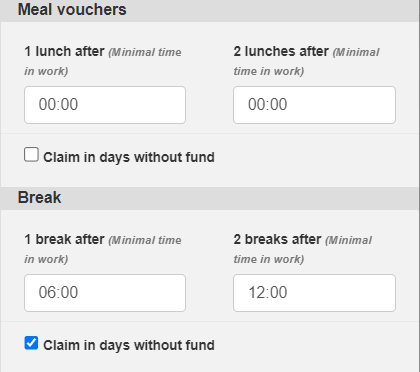
Meal vouchers
1 lunch after - minimum working time after which the employee is entitled to 1 claim for lunch (e.g. 1 meal voucher).
2 lunches after - minimum working time after which the employee is entitled to 2 claims for lunch (e.g. 2 meal vouchers).
Claim in days without fund - entitled to claim for lunch even on days when the employee does not have the prescribed fund, but worked that day.
Break
1 break after - minimum working time after which the employee is entitled to 1 break.
2 prestávky po - minimum working time after which the employee is entitled to 2 breaks.
Claim in days without fund - entitlement to a break/s even on days when the employee does not have the prescribed fund, but has worked that day.
# Planning
Generation of a work plan according to pre-defined rules. At the same time, a work balance is generated (eg defining a work plan using regular and irregular work calendars).
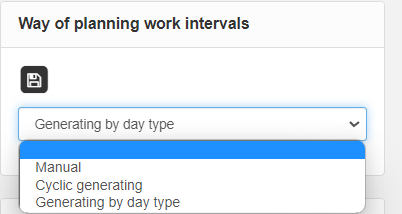

Generating by day type - setting intervals according to the type of days (scheduling a 7-day weekly cycle)
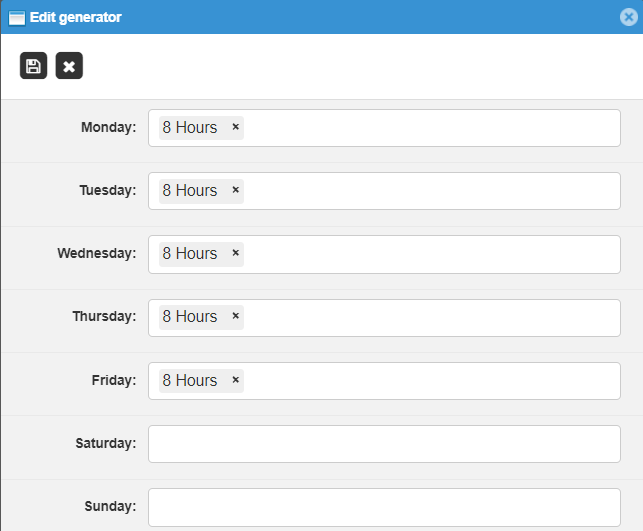
In Day type generating settings, click on the icon Edit generator .
.
Adjust the generator by clicking on each day to select the corresponding work interval for the entire week:
Note
On a day in which no work interval is assigned, the employee has no unscheduled working time - the system automatically assigns a 0-hour work interval.
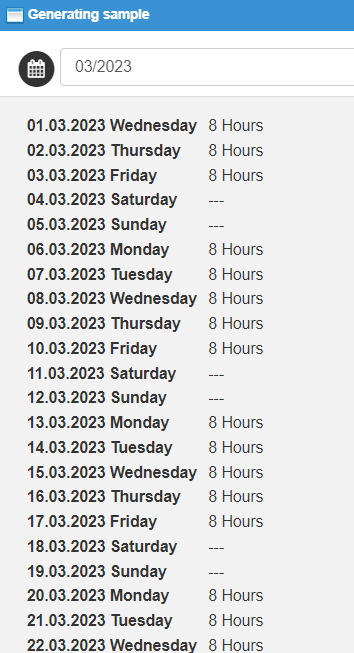
Check the correctness of the generator settings by clicking on the iconGenerating template  . Check the generator settings for the selected month:
Cyclic generating - setting the generation of a regularly recurring work mode for any number of days.
In Day type generating settings, click on the icon Edit generator.
Edit the generator:
- Set the start of the cycle
- begin from every first day of the month
- begin from date - choose the start date of the cycle
- Each line represents one day, while the plus icon adds days to the cycle and the trash icon removes them.

3.Clicking in each row will display the options for entering the interval
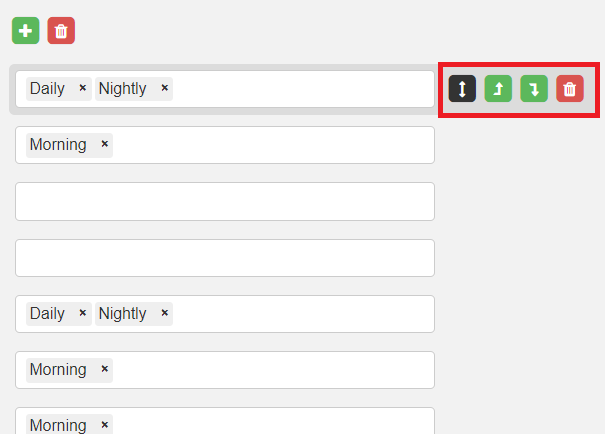
Select the corresponding work interval in the row. You can move each line up or down or delete it.
Save .
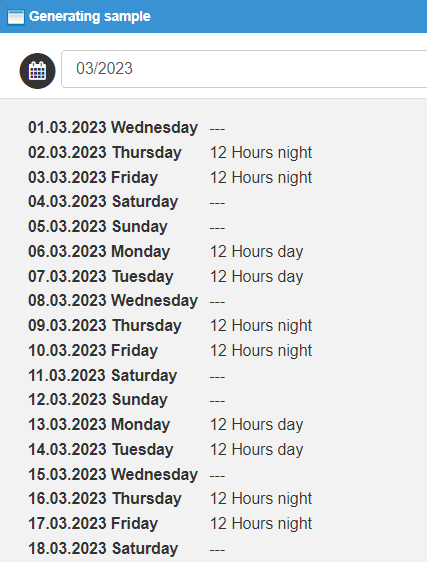
Check the correctness of the generator settings by clicking on the icon Generating template.
Check the generator settings for the selected month:
Manual - the parameter is defined for work modes where no repeating cycle can be defined. The cycle is set manually by the attendance administrator for each month as an irregular work calendar. see [link]
# Rounding
Parameter determining the rounding method of work mode totals - Accepted in work
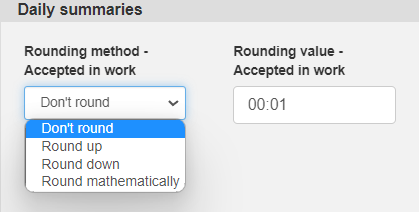
Rounding method - Accepted in work - determines if and in what way the summary Accepted in work is rounded: - Don't round - Round up - Round down - Round mathematically
Rounding value - Accepted in work - define the value with which the sum Accepted in work should be rounded.