# Basic informations about webBox
WebBox serves as a multifunctional system that can be used for employee attendance records, user access to various facilities, visitor records, ordering and delivery of lunches, etc.
# Login to the System
You log in to the webBox system using the link in the web browser assigned to you by the SW technician and using the login screen:
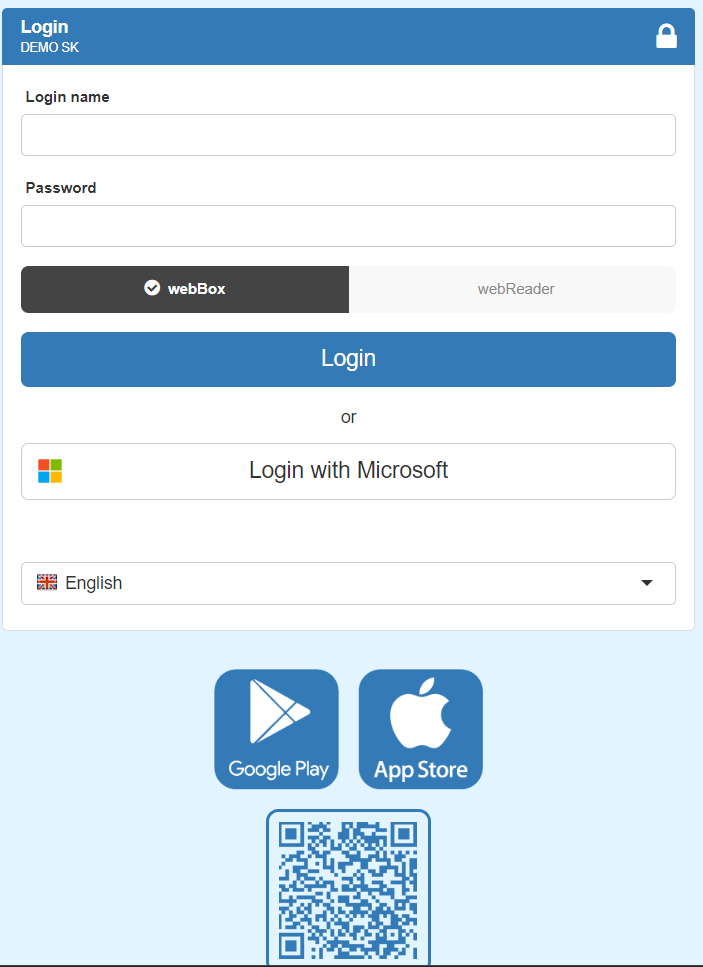
Login name and password: use assigned by the SW technician
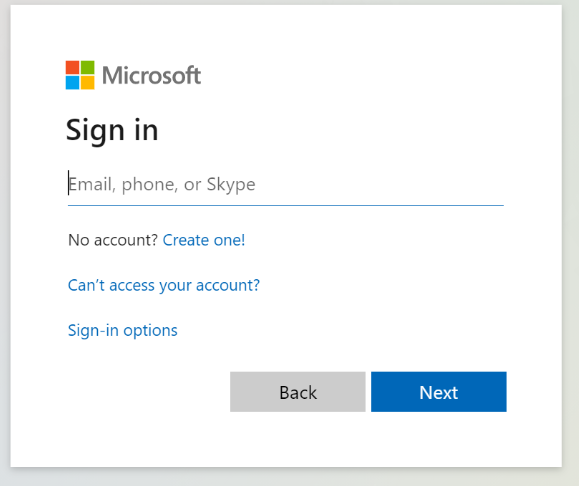
If you have an active Microsoft Graph API OAuth 2.0 system connector and set automatic redirection, the Microsoft login page will open.
# Custom settings
We recommend changing the assigned password. On the webBox main screen, by clicking on the wheel for user settings:
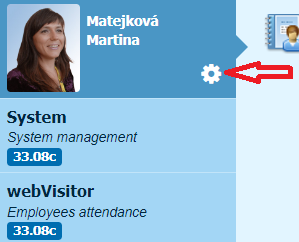
In the mentioned menu, it is possible to customize the user environment according to your custom settings.
# Password
Click on Password and a screen for changing the password will appear:
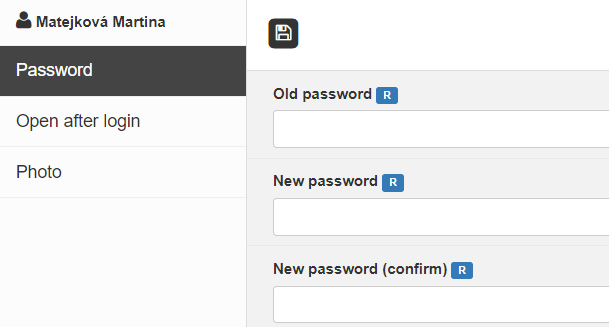
Save the password  .
.
# Open after login
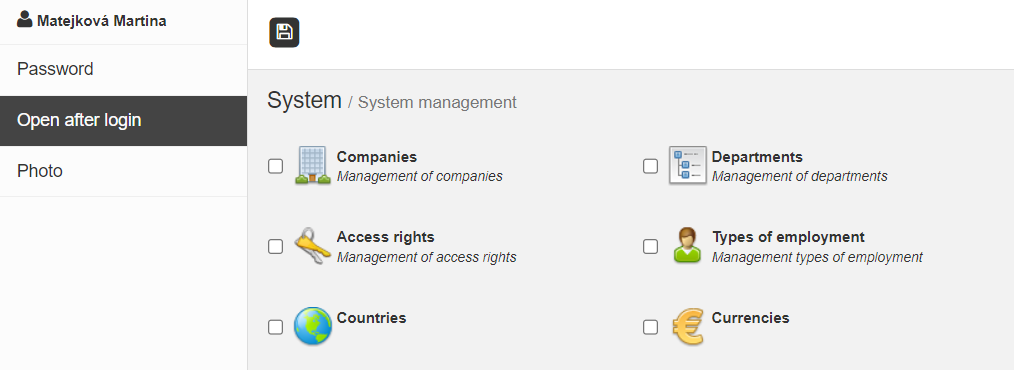
Click on Open after loginto set the windows that will be opened immediately after login:
# Photo
Clicking on the Photo button will display a dialog box for uploading a photo from a file.
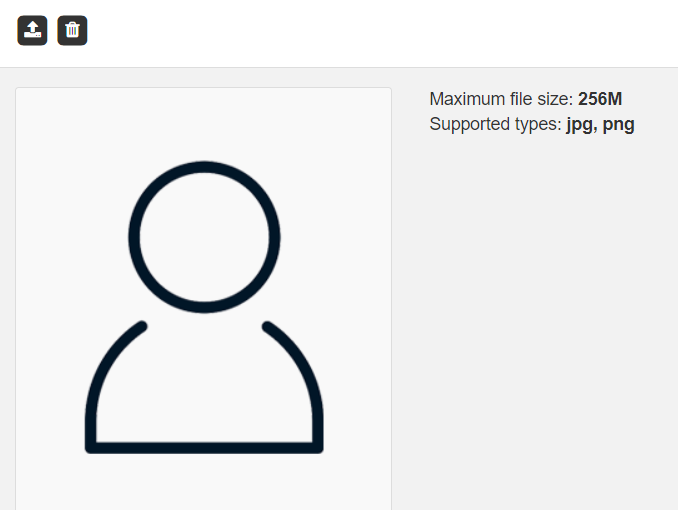
Press the arrow and select your photo from the file:

Note
The uploaded photo is displayed in the employee's attendance profile and in the grid (in the actual presence monitor) of the employee.
Save the settings .
# Description of the main webBox screen
The main screen is divided into individual parts:
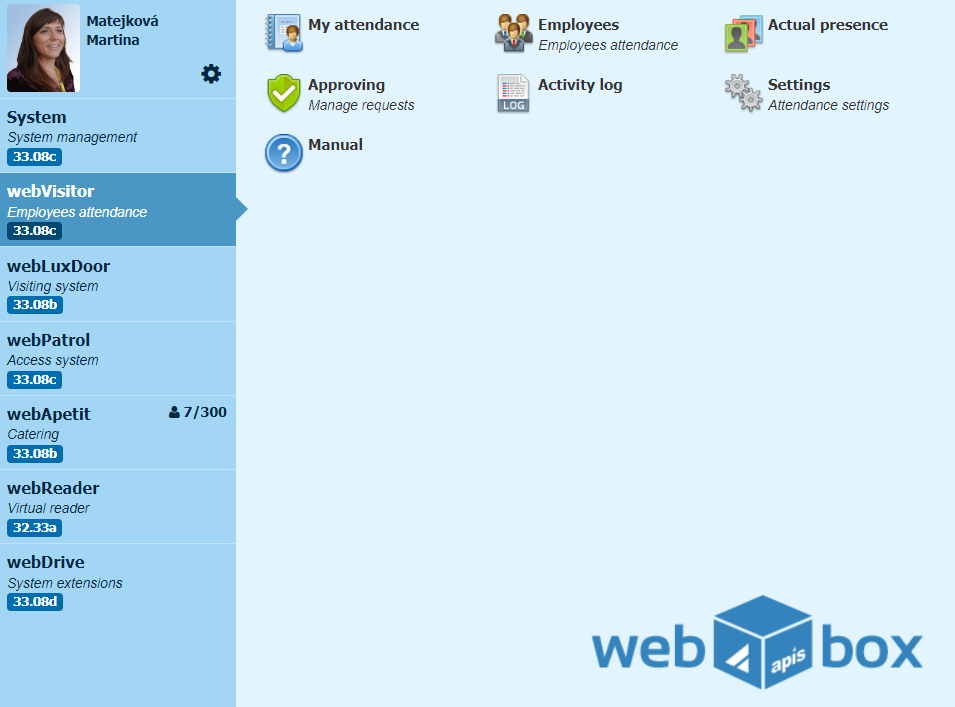
1. left side of the screen:
Name and surname of the user with the possibility of a photo and personal customization of the system, see Custom settings
Activated applications of the webBox system, to which the user has access according to the set rights, see Access rights
Permitted licenses for the number of employees, diners .....
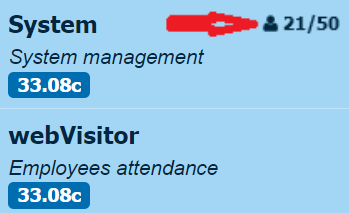
Example
License 21/50. The first number in licenses means the number of occupied active licenses (21) and the second number the number of all purchased licenses (50).
- The version number of each application
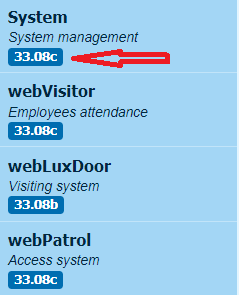
2. right side of the screen:
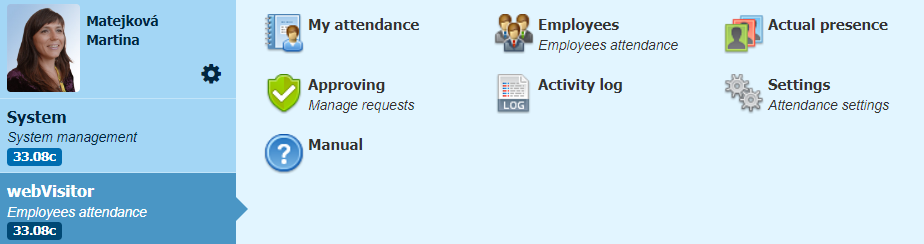
- contains modules for management and work in the selected application:
For example for the webVisitor attendance module, the work modules are displayed as follows:
Note
The display of modules depends on the rights of the logged-in user.
3. bottom of the screen:

- option to minimize the window

- option to enlarge the window to full screen

- logging out of the webBox system
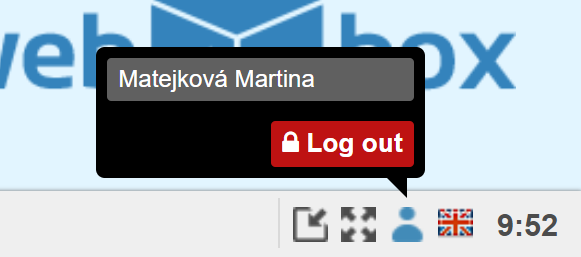
- change the language