# Readers - Readers management
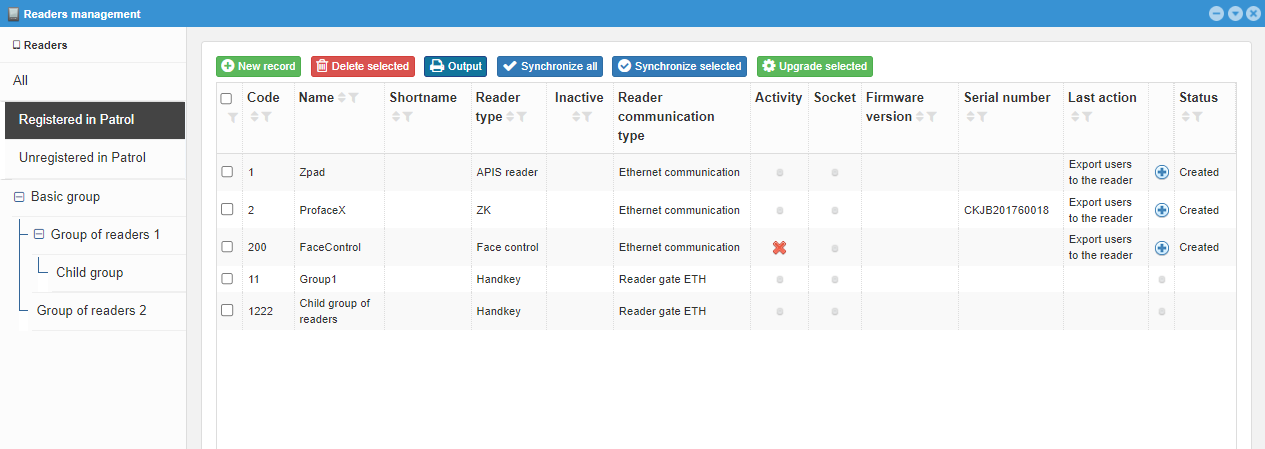
This code list is intended for working with readers for access and attendance, as well as for checking their communication with the server. It is possible to add, edit, delete readers, synchronize configuration information and templates.
 |
|---|
# Reader type
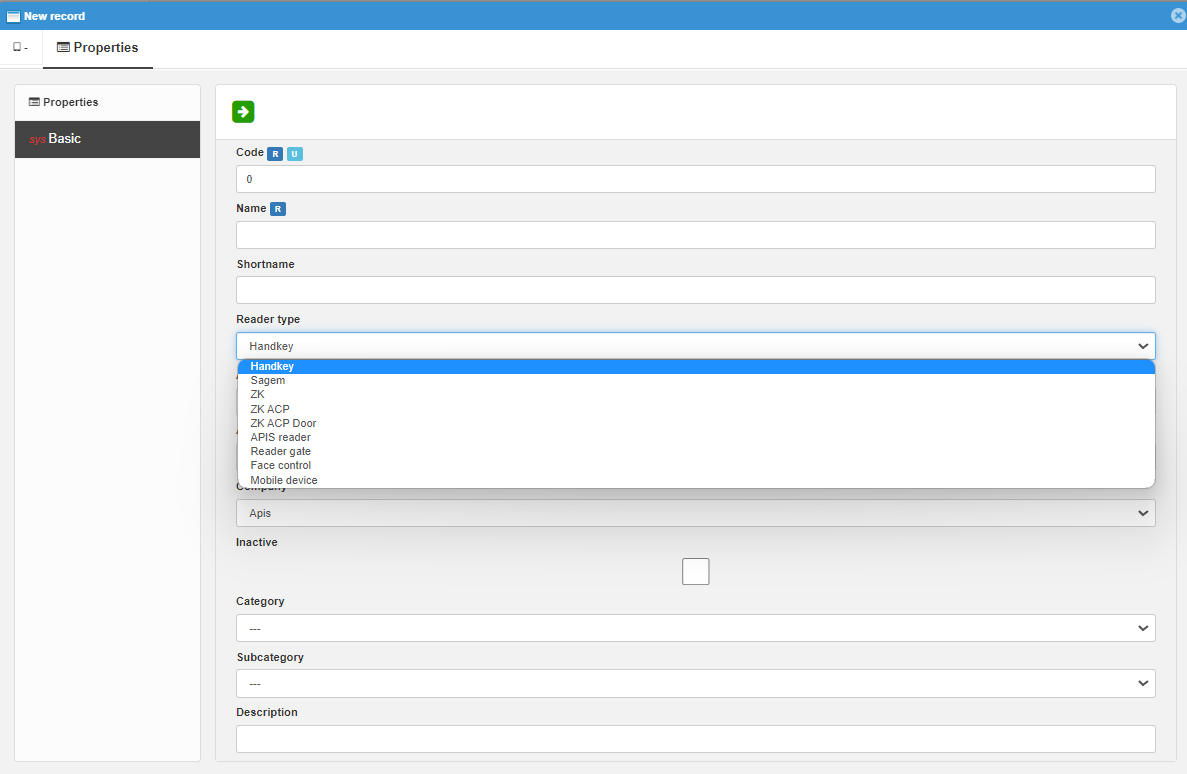
Since each of the types of readers we use communicates a little differently, it is necessary to classify them. Reader types:
# Handkey
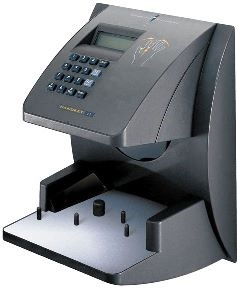
Currently, in practice, we no longer use these readers. The Handkey II reader belongs to the Handkey type readers. They serve to authenticate the user using signs on his hand.
# Sagem
We currently do not use this type of readers.
# ZK
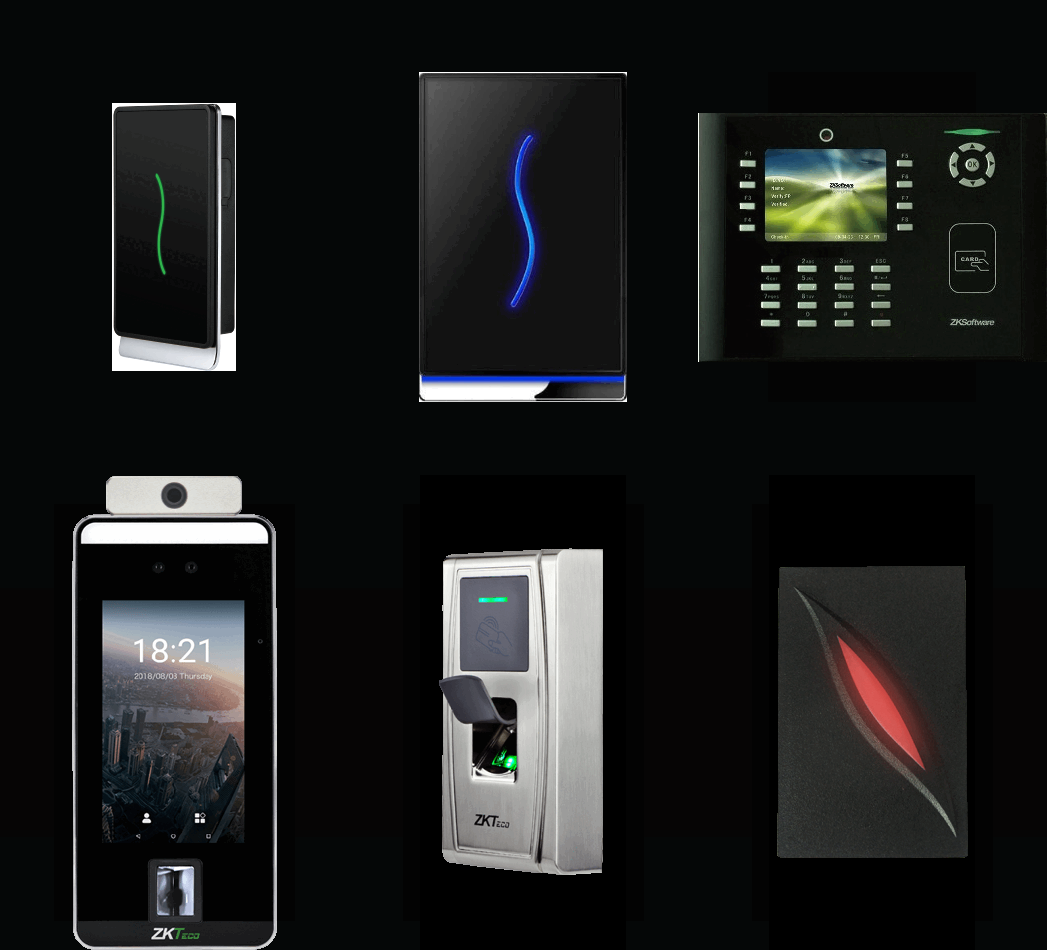
For example, ProRF readers and its older brother SCR100, iClock S880, ProFace, SpeedFace and MA300 can also be used.
ProRF and SCR100 readers are used for user authentication using EM, MF and HID cards.
The iClock S880 reader is used for fingerprint, card and PIN authentication.
ProFace and SpeedFace readers can be used for authentication with fingerprint, palm pattern, face pattern, EM/MF/HID cards of the same types. These readers can also verify the wearing of the mask and the temperature of the user according to the limit setting. But it all depends on the choice of reader before purchase.
The MA300 reader, in turn, is intended for user authentication using a fingerprint.
# ZK ACP
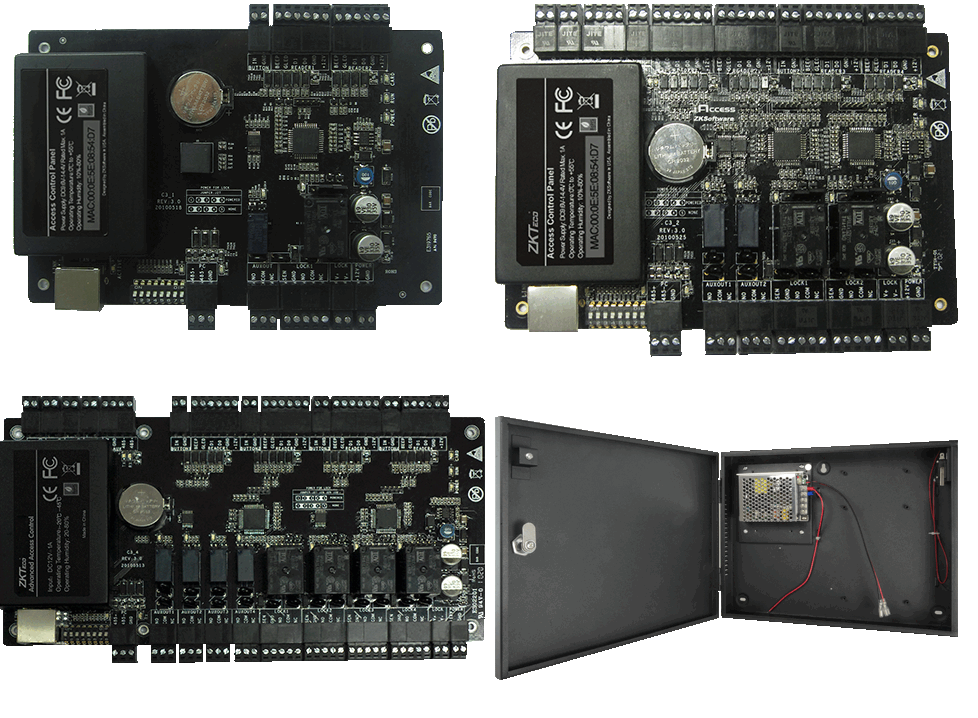
The reader type C3-100/200/400 is not a reader as such. It is a composition of several devices in one metal box. It contains the C3-100/200/400 itself, where the first digit after "-" means how many doors it can be used on. Added to this is the KR600 power supply, battery and readers. There must be a ZK ACP and one ZK ACP Door for one door, and another ZK ACP Door for every other door. It is used, for example, in turnstiles.
# ZK ACP Door
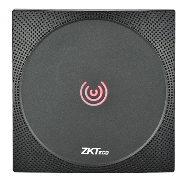
The ZK ACP Door reader type is, for example, the KR600 reader, which connects directly to the C3-100/200/400. It verifies the user using his EM and IC card.
# APIS reader
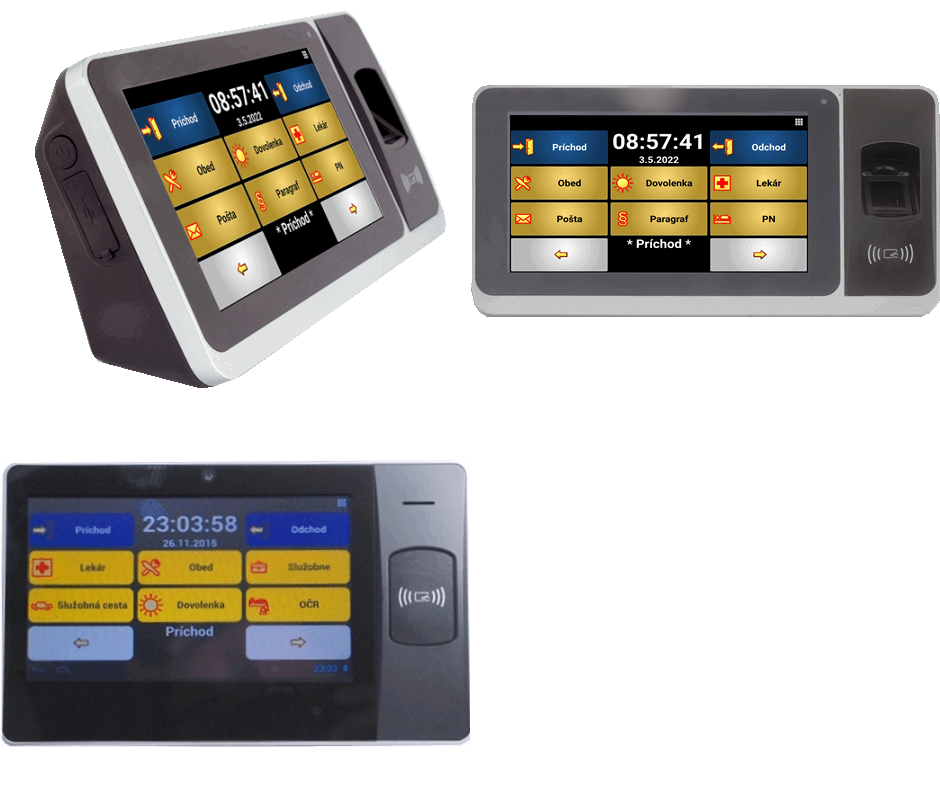
APIS reader is a reader modified by our company. It contains basic android, necessary basic applications to run and our system. Everything unnecessary is removed. This type of readers include the older BioPad, the current Zpad, and work is underway to update new Zpad readers that work on a different OS version. These readers authenticate users using an EM/MF/HID card and a fingerprint (according to the order; the reader only authenticates one type of card, depending on the setting). They have the option of creating a photo during verification/non-verification. The menu is adjustable.
# Reader gate
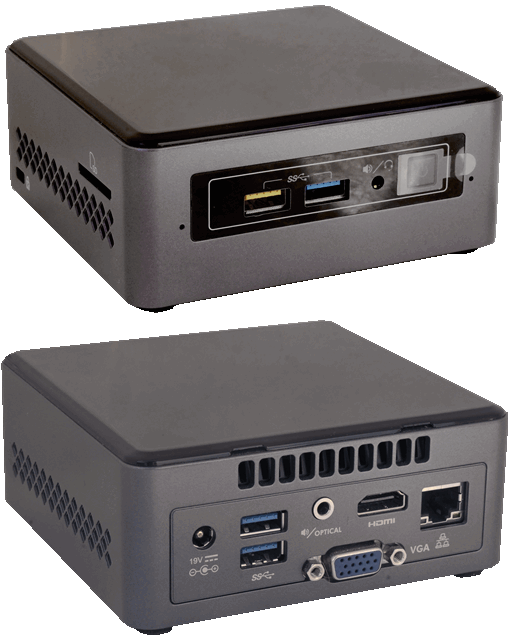
Reader gate serves as a postman for ZK readers, which cannot be recognized without it. We use miniPC NUC for this. In combination with a touch screen and a card/finger reader, it can also be used as an ordering system for WebApetit ordering food.
# Face Control
MiniPC Jetson TX2 + camera + screen
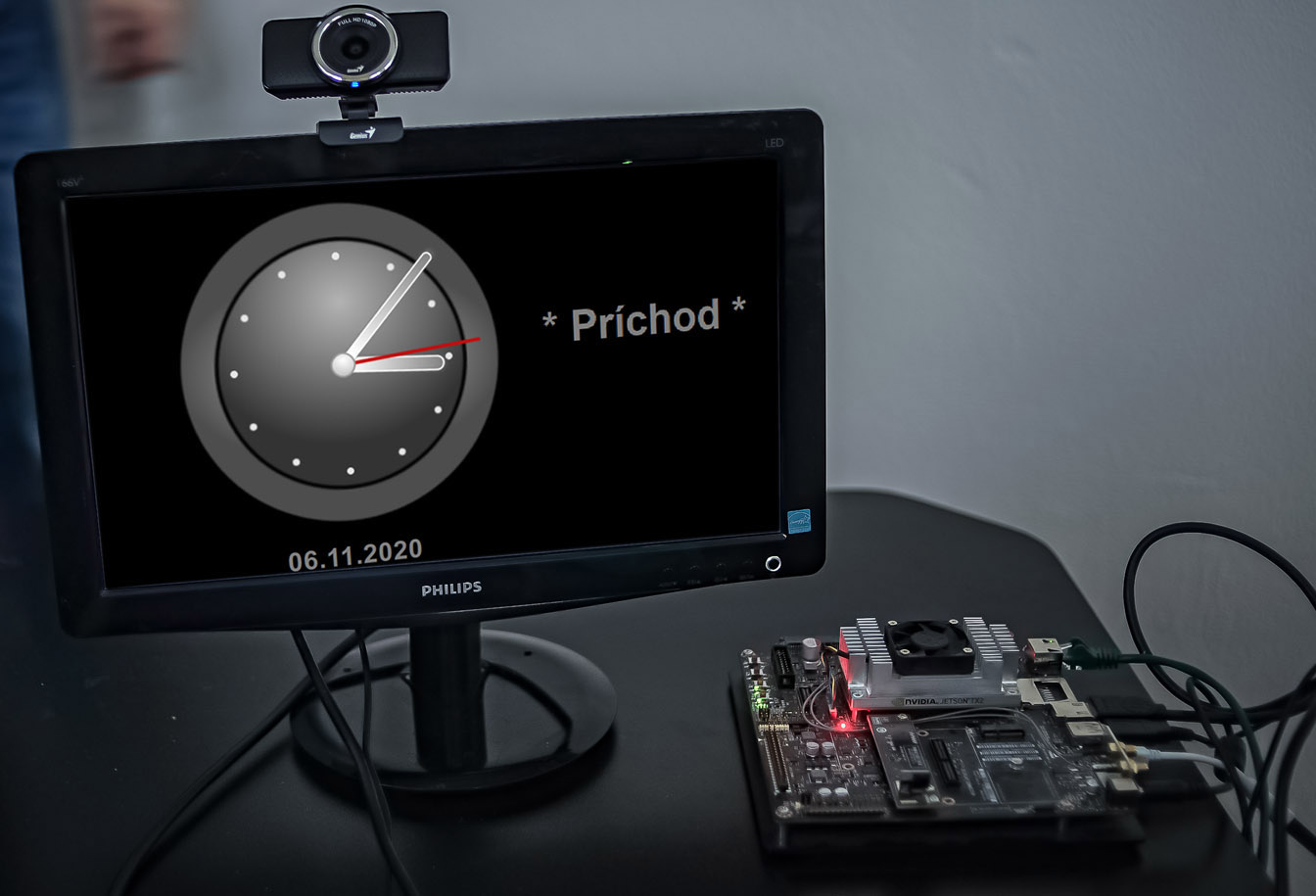
# Mobilné zariadenie
This includes Tablets and other similar mobile devices with the Android operating system. They are mainly used as readers for webApetit.
# Readers - filtering
 |
|---|
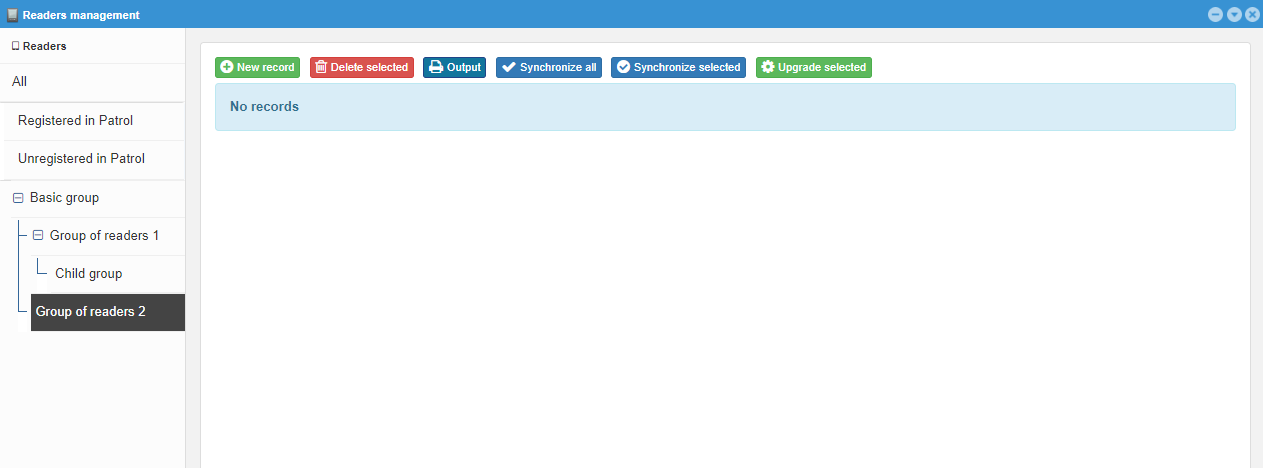
When you open the readers window, you can notice the readers are divided into different groups on the left side of the screen. Every time the window is opened for the first time, the filter of registered readers Registered in patrol is automatically selected. The filter when working with readers is especially useful if you have a large number of readers and have created groups of them. The lower part of the filter is adjusted according to Groups of readers.
# Working with the reader
In the reader code list, you can insert a new reader, edit existing readers, delete readers, send user templates to the readers and, after opening the given reader, from the reader.
Buttons in the main part of the window:
New record- create a record of a new readerDelete selected- delete selected readers from the webPatrol and System modules *1Output- print the currently open, visible table of readersSynchronize all- send templates of all users to all readersSynchronize all users to selected readers- clears all templates on the reader and writes all templates from the serverSynchronize only changed users to selected readers- compares templates on the reader with templates from the server, replaces different templates on the reader, completes non-existent templates
Synchronize selected- send templates of all users to selected readersSynchronize all users to selected readers- clears all templates on the reader and writes all templates from the serverSynchronize only changed users to selected readers- compares templates on the reader with templates from the server, replaces different templates on the reader, completes non-existent templates
Upgrade selected- update the firmware of the selected reader
Note
*1 Required privilges in the System module
Warning
Update selected works only if set by APIS spol s.r.o.. Otherwise, it only detects the version from the reader (and at the same time overwrites its serial number in webPatrol)
 |
|---|
# New record
A software technician normally works on pre-preparation of the reader. When creating a new reader record, additional setting options are gradually opened according to previously selected and filled data.
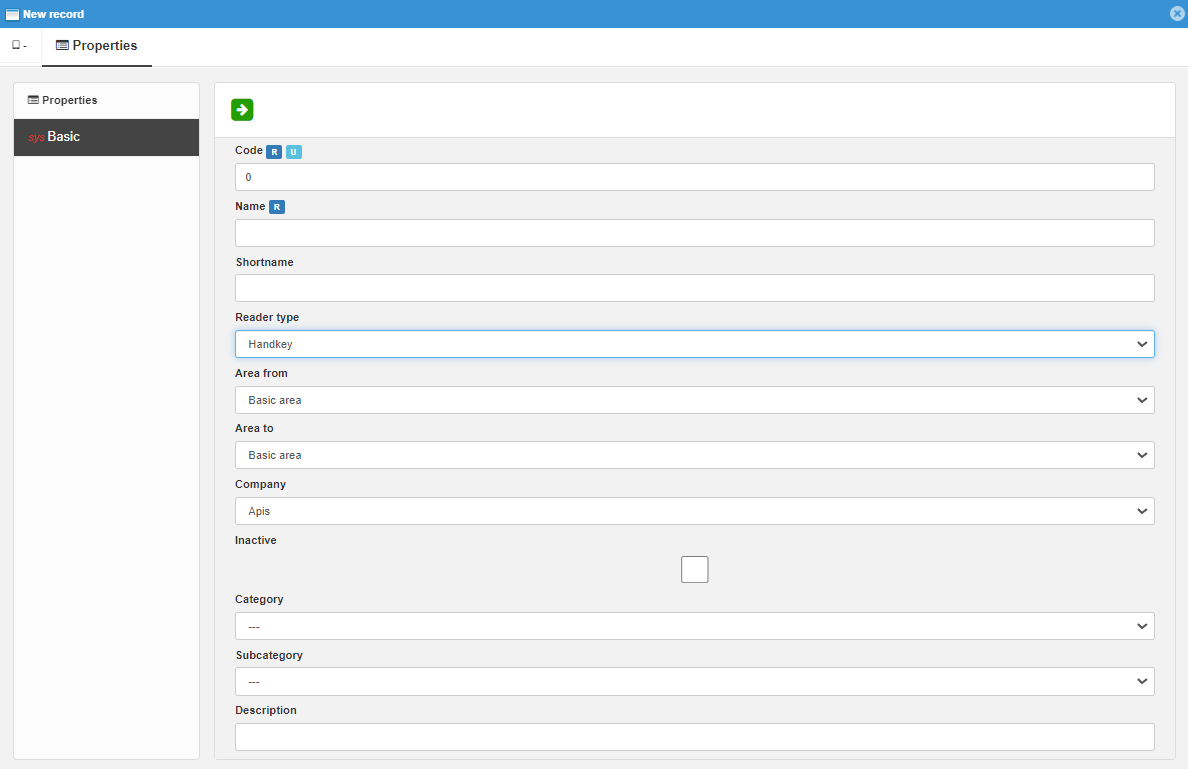
Initially, only the Properties category is visible with the Basic sub-category, which belongs to the System module. It is selected with an icon  . Such a sub-category can only be edited by a user with privilege in the given module, only then others will be opened/displayed.
Note
Normally, a software technician works with reader records. If you still want to create a new reader record, you need to fill in the minimum required fields and select the correct type of reader, which cannot be edited after that.
In the case of ProFace and SpeedFace, the serial number field is not selected as required, but it must be filled in correctly, otherwise the communication between the server and the reader will not work.
# Editing of the reader record
You can open the reader editing window by double-clicking on the name of the given reader. When editing an already fully created and set reader, you have the option to open each of the categories.
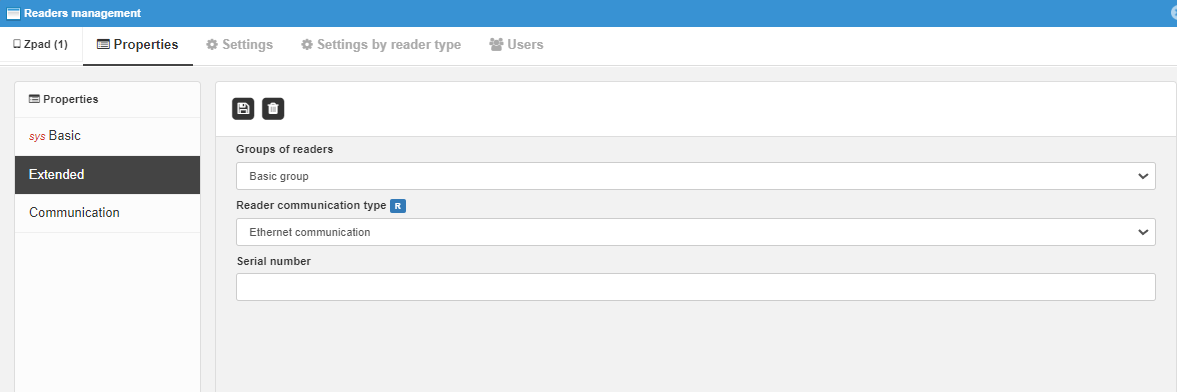
The most important thing when editing the reader is the use of importing users from the reader, setting the keys, or even editing some basic settings and synchronizing them with the reader. You can also adjust the communication settings if active communication is not used and the IP address of the reader had to be changed. Etc.
# Delete selected
Deletes selected readers from webPatrol.
# Output
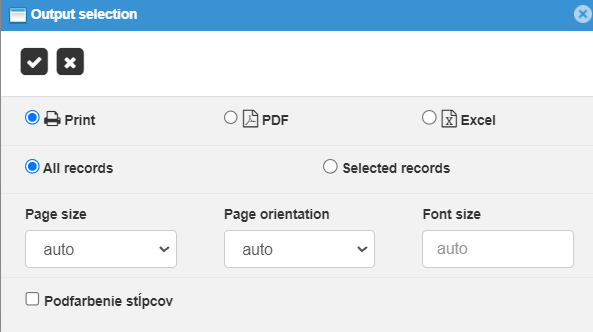
After filtering, you can print the result using the output icon, where you can choose the file format and other options.
# Synchronize all/selected
When synchronizing all/selected readers, a window will open with the choice of synchronizing all users or only changed users.
- in the case of all, all users will be deleted from the specified readers and replaced by users registered in webPatrol.
- in the case of selected only users who do not match between the reader and webPatrol are deleted and written. (they will be replaced on the reader by a recording from webPatrol)

# Other options
After right-clicking on the reader, a selection of options will open:
- Readers management- edit reader settings, import users from the reader, etc.
- Delete - deletes the given reader from webPatrol and the System (authorizations required in the System module)
# Reader window
Some data must be stored for the functionality of each reader. For others, the default settings are enough, and some you don't need to set at all. Not every type of reader has the same characteristics, so their settings window is not exactly the same.
# Properties
The first category in the reader window is Properties, which stores the most important settings required for the reader to work, advanced properties and communication properties, which vary according to the reader type.
# Basic
Code- registration numberName- device name (at your discretion)Shortname- shortname (at your discretion)Reader type- Reader type option can be entered only when creating a new reader, otherwise it is necessary to add the reader againArea from- indicates which area the user is leaving fromArea to- indicates which area the user entersCompany- indicates which company the reader belongs toInactive-marks the reader as inactive, the reader does not automatically receive commands and transactions are not downloadedCategory- choosing a category is not required (if, for example, a reader is used for attendance records), this indicates the purpose of the reader:Doch- attendance records (webVisitor)Prist- access record (webPatrol)Strav- ordering food (webApetit)Navstevn- record of access by other persons (webLuxDoor)Obchodz- records of detours
Subcategory- just like the category, in some cases the selection is not required, this indicates the secondary role of the reader:Prich- clock in recordOdcho- clock out recordObjedn- ordering food recordVydaj- dispensing food record
Note
Note
The space label is used if you want to record in which area the user is located, and then it is necessary to create an area other than the basic area "Basic area"
# Extended
Groups of readers- the reader is included in the reader groupReader communication type- is chosen from the options:ReaderGate- SCR100, ProRF, MA300, ...Ethernet- ReaderGate, ApisReader, ProFace, SpeedFace, ...
Serial number- must be filled in for ProFace, SpeedFace; suitable to fill in everywhere
# Communication
Líši sa podla typu snímača:
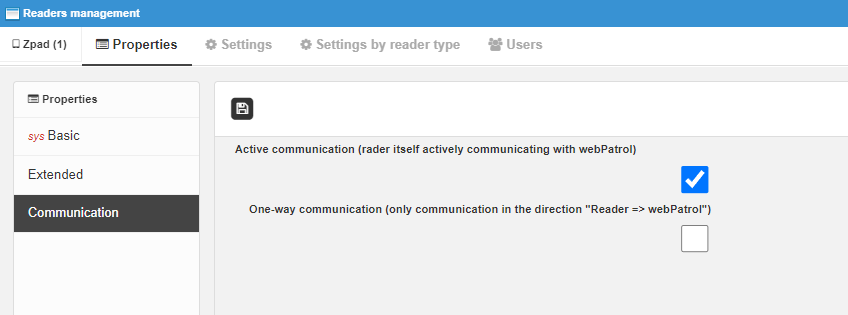
Option Active communication (reader itself actively communicating with webPatrol) is mostly used for devices communicating directly through Ethernet.
For readers that do not use active communication, it is necessary:
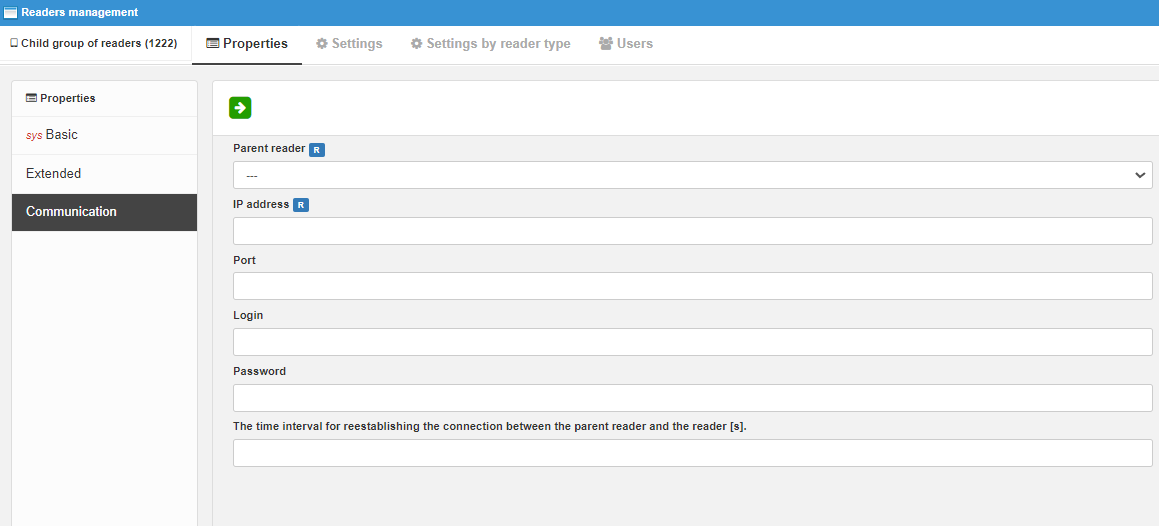
IP adress- define their fixed IP addressPort- with some types such as SCR100, it is also necessary to define the port (normally 4370)Login name- fill in if it is other than basicPassword- fill in if it is other than basic
# Settings
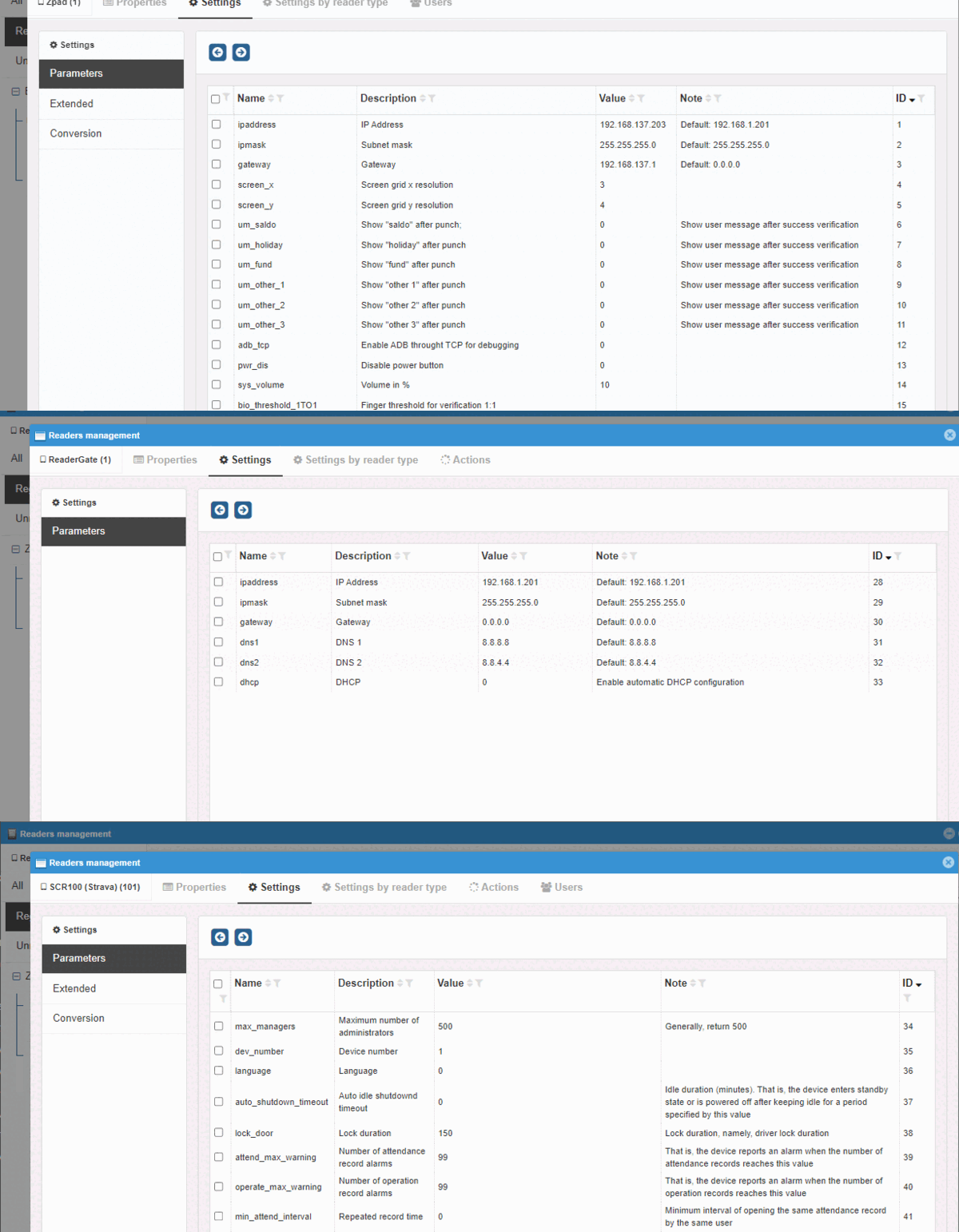
The Settings category contains synchronizable settings of the reader according to the type of reader, and thus the settings are also different because of their difference.
# Parameters
reader settings that can also be edited through the server (first download the current reader settings, then edit and send). For example, with an APIS Reader type reader, it is possible to adjust network settings, menu layout, volume, fingerprint authentication strength, etc.
Note
It is better if you leave these settings to a software technician.
# Extended
The type of cards that the reader should use is selected here. Possibilities for determining the import/export of the types of templates with which the reader should work and for which employment type it is intended.
Example
If you set the reader to import only card and hand templates, at the same time to export only hand templates, only card and hand templates will be written to the reader when synchronizing the reader. And when importing templates from the reader, only hand templates are written to the DB server.
# Conversion
Setting to change all new transactions to a different type (when not identified, it only works with the data as the reader sends it).
Example
It can be used, for example, if you need all verifications on a given reader to be considered a departure to interrupt the Smoking break.
# Settings by reader type
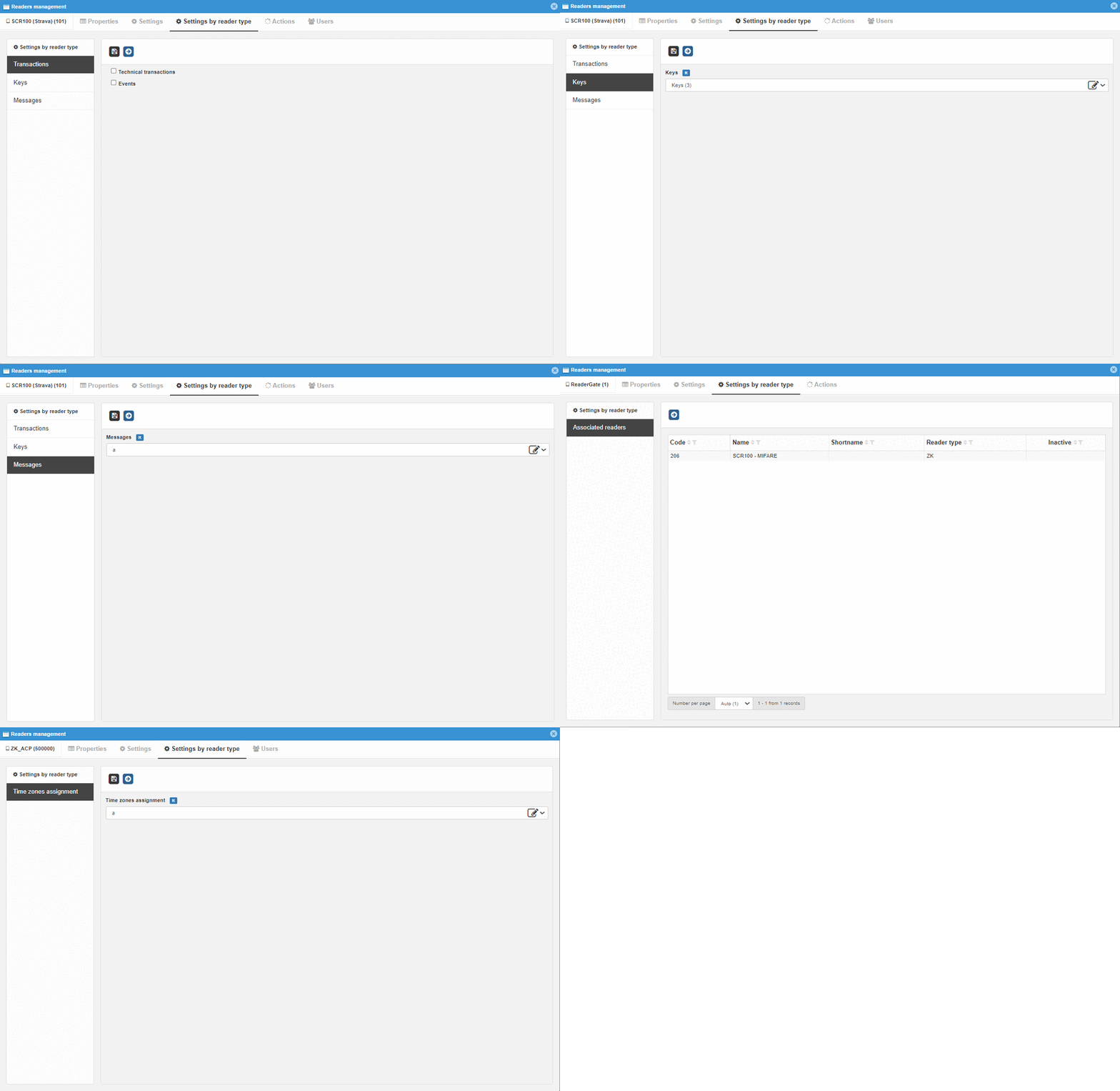
Settings by reader type are intended to refine the work of the reader. For example, with an ApisReader type reader (Zpad, Biopad), it is possible to set the keys and their functionality that will be displayed on the reader screen. With the ReaderGate (NUC) type, it is possible to assign readers with which it should communicate as their gateway.
# ApisReader
Keys- option to select and send set keys to the reader Settings - code lists according to reader types - APIS Reader type readersMessages- option to set the message to be displayed after selecting the set key from the menu
# ZK
Transactions- Options for setting up receiving technical transactions and event information (for software/hardware technicians, problem identification)Keys- if the reader has a screen, assigning and sending keys to the reader Settings - code lists according to reader types - ZK type readersMessages- Not in use at this time
# ZK ACP
Time zones assignment- The basic time zone assignment is:- Always - everywhere
- Never - nowhere
- You can create more
# ReaderGate
Associated readers- readers with which ReaderGate should communicate
# Users
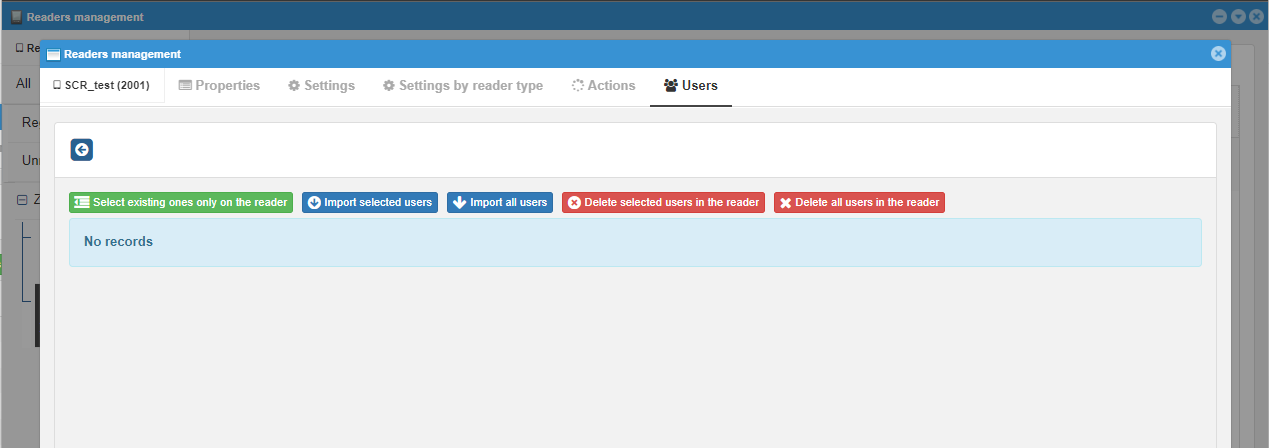
The given category is visible on reader types that contain records of user templates.
 |
|---|
Load user list from the reader- It reads the basic data of users, which are found in the records of the reader. It does not edit user templates on the server.Select existing ones only on the reader- Marks from the current table of the list of users read from the reader only users who do not yet have a record with the same PIN in webPatrolImport selected users- Imports selected users from the reader to the serverImport all users- Imports all users from the reader to the serverDelete selected users in the reader- Deletes selected users from the reader
# Importing users from the reader
- Load users from the reader using
 .
. - Mark the users you want to upload to the server. (you can also import all of them, but it takes longer and can cause complications when overwriting the original information to the set information before importing)
- Import users with a selection of options
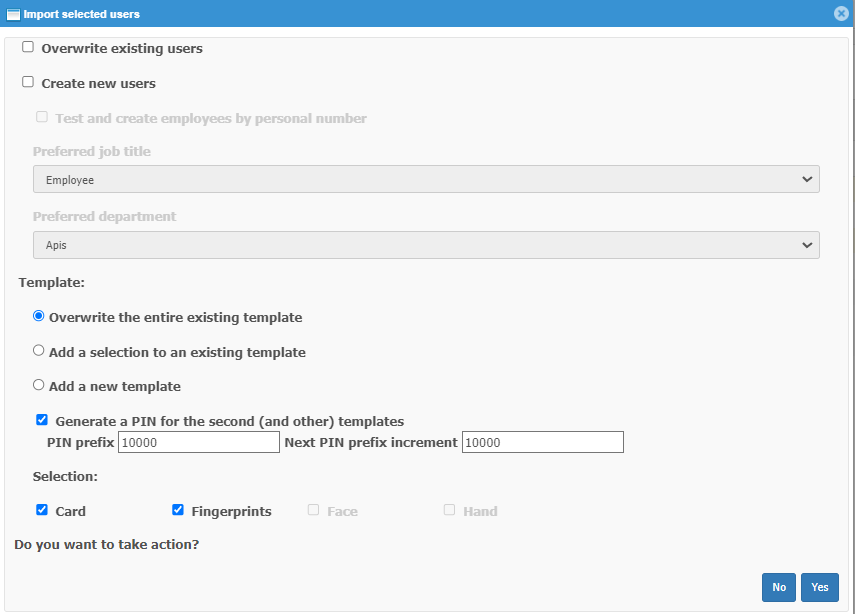
In this case, there are several options for different purposes:
Overwrite existing users- replaces user data in the system with user data from the readerCreate new users- if the user in the reader does not yet exist in the system, it will be enteredTest and create employees by personal number- if the employee does not yet exist in the system, it will only create a user; employee, if it is to exist, will need to be created manually*1
- Wait for the import to complete
Note
*1 it is necessary to enable this option in the settings